Profile and Default Work Cities
Picture, display name, language, and up to 3 cities that will be the default for your searches.
The profile is what clients will see if you share your public link, and also what the assistant uses to know where you are active. Choosing "default cities" (up to three) saves time: when you ask "show me 4‑room apartments" without specifying a city, it will know to search in them automatically.
Do it in the app
-
1
Enter Profile
From the corner menu — select the "Profile" option. The screen shows everything you can edit.
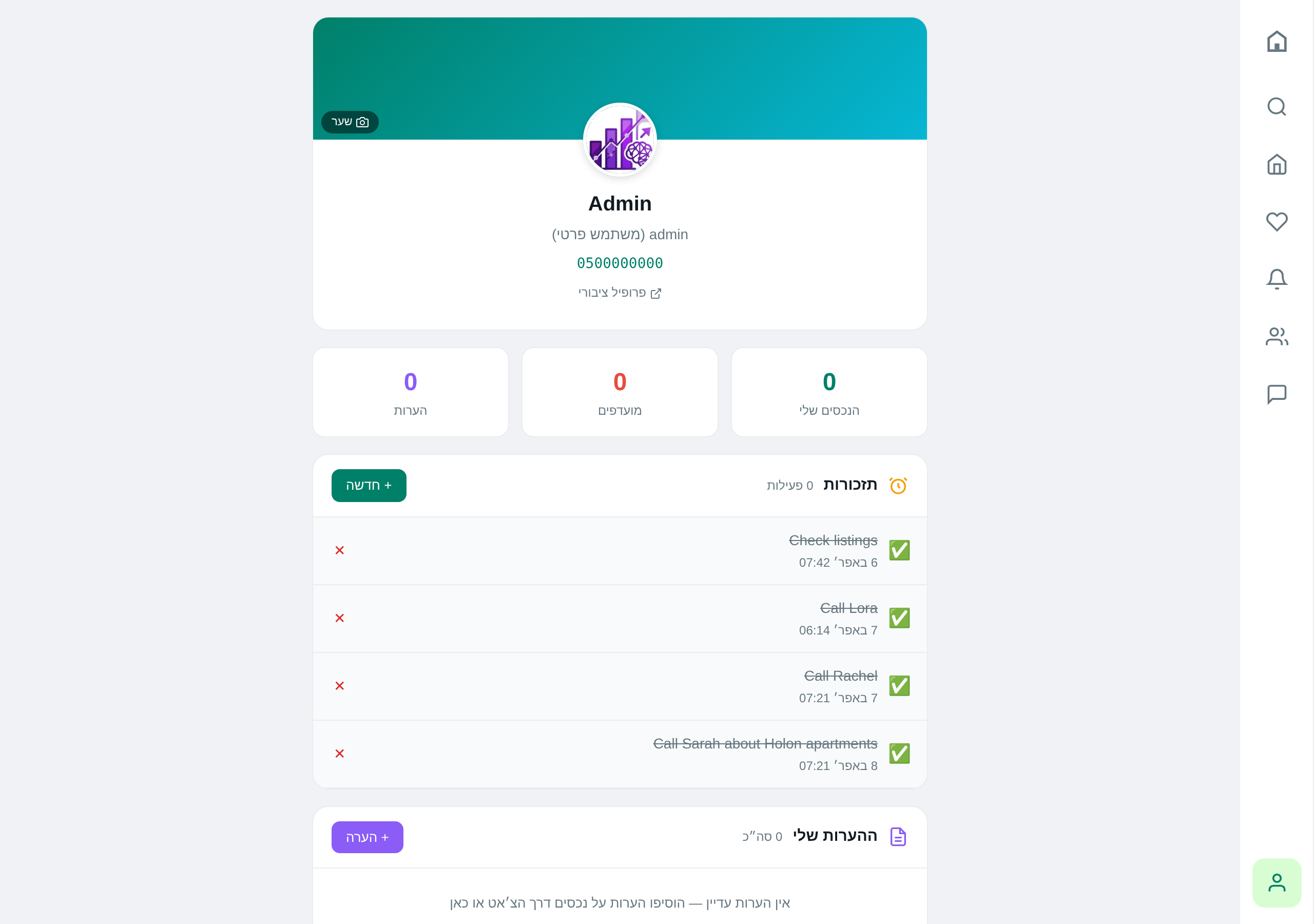
-
2
Profile Picture and Background Image
Both are optional. A square picture is preferred for the profile and a panoramic one for the background. Clicking the picture opens an upload window.
-
3
Language Selection
Hebrew, English, or Russian. The language only affects your interface — it does not change the properties you see.
-
4
Setting Work Cities
Tell the assistant "save Be’er Sheva and Holon as default cities" — and it will take care of it. You can update at any time, just say "change the cities".
Do it via AI
Reminder: the assistant really performs these actions — not just describes them.
Currently set to work in Be’er Sheva. If you request a search without specifying a city, I’ll search there.
You can add up to 3 — tell me "add Holon" or "replace with Tel Aviv".
Updated ✓ — now Be’er Sheva and Rehovot. Searches without a city will include both.
The interface is now in English. To switch back, just say "תחליף לעברית".
Tips & gotchas
If you are active in four or more cities, that's no longer a "default" but an active search — it's better to specify the city in each request rather than rely on the list.
When you add a property in a new city, it automatically enters the list (if there are fewer than 3 there). A low‑effort way to build the list while working.
Ready to start?
Open the app or talk to the assistant on WhatsApp.