Contacts and Clients — Simple CRM
Name and phone — and everything else is collected automatically: what the client is looking for, what you showed them, what they said.
Your clients are your most valuable asset. The Contacts page lists buyers/sellers/partners, and each contact has its own timeline: call, meeting, property visit, offer, deal. The more diligently you update the timeline after every interaction, the more the assistant knows and can help you better.
Do it in the app
-
1
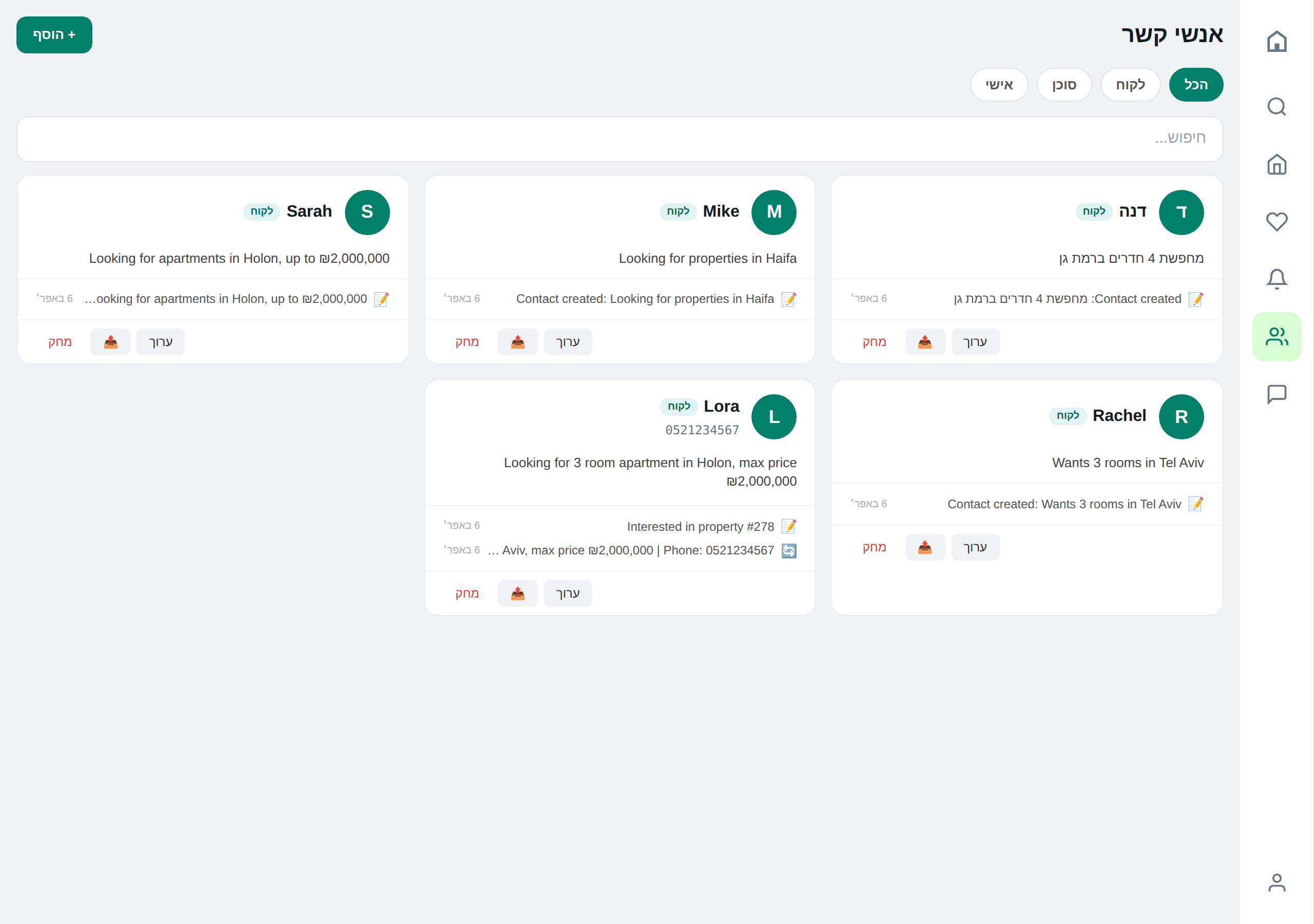
Add a Contact
Name and phone — required. Type (client / partner agent / personal) and free field "What they are looking for".
-
2
Link to Saved Search
Open a saved search alert from the contact page and link it. Any future match will appear on their profile page.
-
3
Document an Event on the Timeline
After each meeting / call / visit — add an event. Types: call, meeting, visit, offer, deal, note, email, message, feedback, update.
Do it via AI
Reminder: the assistant really performs these actions — not just describes them.
Saved ✓
- 👤 David Cohen · 050-123-4567
- 🎯 5 rooms, Beersheba, up to ₪3M
Do you want me to set up an alert — I'll notify you when there are new matching apartments?
Recorded on David's timeline:
- 📅 Visit to property "Karlevich 12" — today
- 📝 "Liked, hesitated because there's no balcony"
If you like — I can also search for 5 alternatives with a balcony in the same area.
Tips & gotchas
If a contact's phone number matches the phone of a property owner we scraped for you — this agent can update the property. The association is automatic upon registration.
After a 5‑minute phone call, record a single line on the mobile timeline. A month later when the client returns with a question — you'll have a full picture instead of trying to remember from memory.
Ready to start?
Open the app or talk to the assistant on WhatsApp.