Adding a Property via the App
Simple form with auto‑completion of cities and neighborhoods. Only city and price are required — the rest is a bonus that improves matches for clients.
Adding a property is a short form. Only two required fields: city and price. Everything else (rooms, street, house number, floor, parking, elevator) — recommended but not required. The more you fill in, the more accurate the matches you receive for this property will be.
Do it in the app
-
1
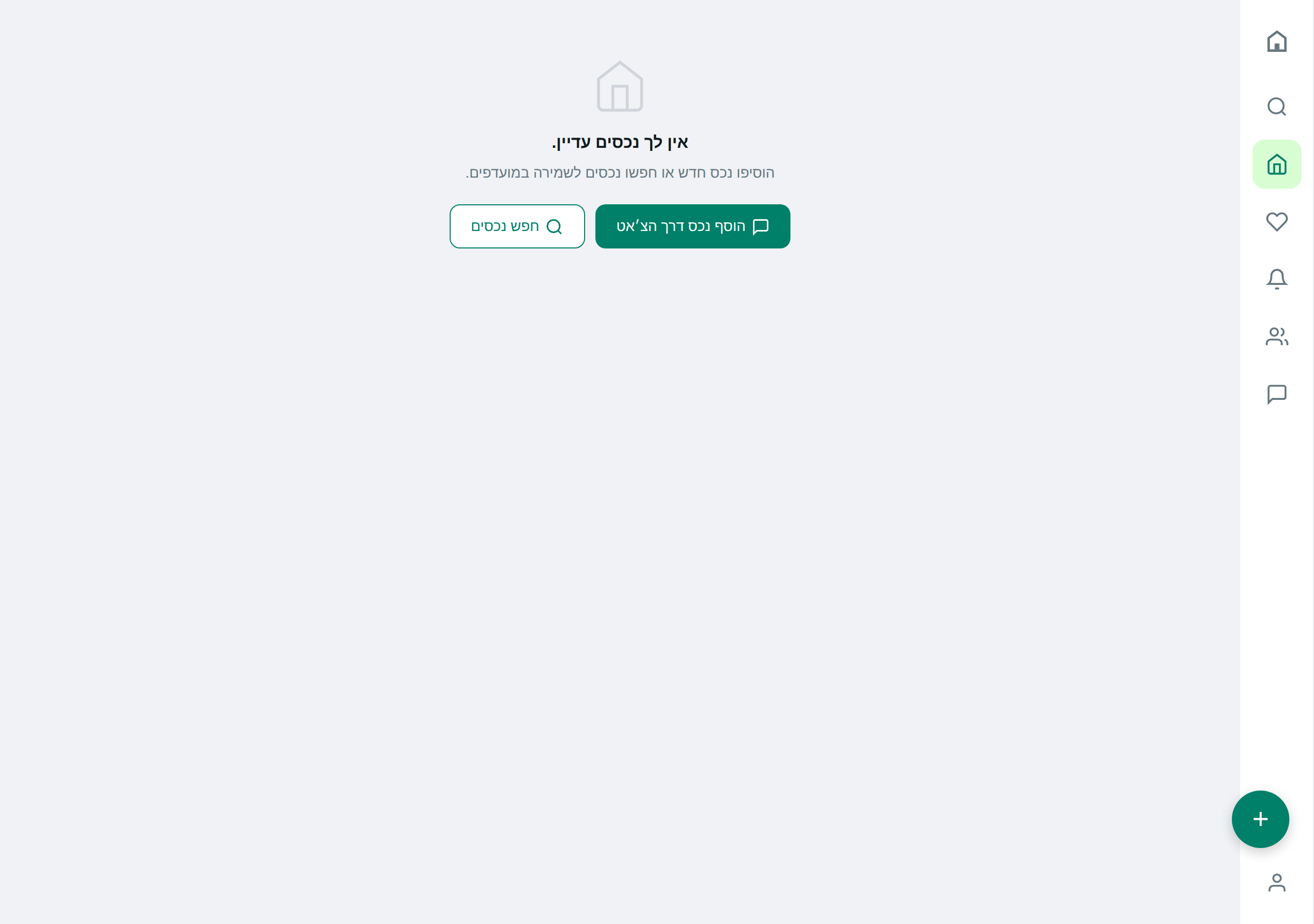
Open Add Property
From the main menu, or via the floating button on the "My Properties" page.
-
2
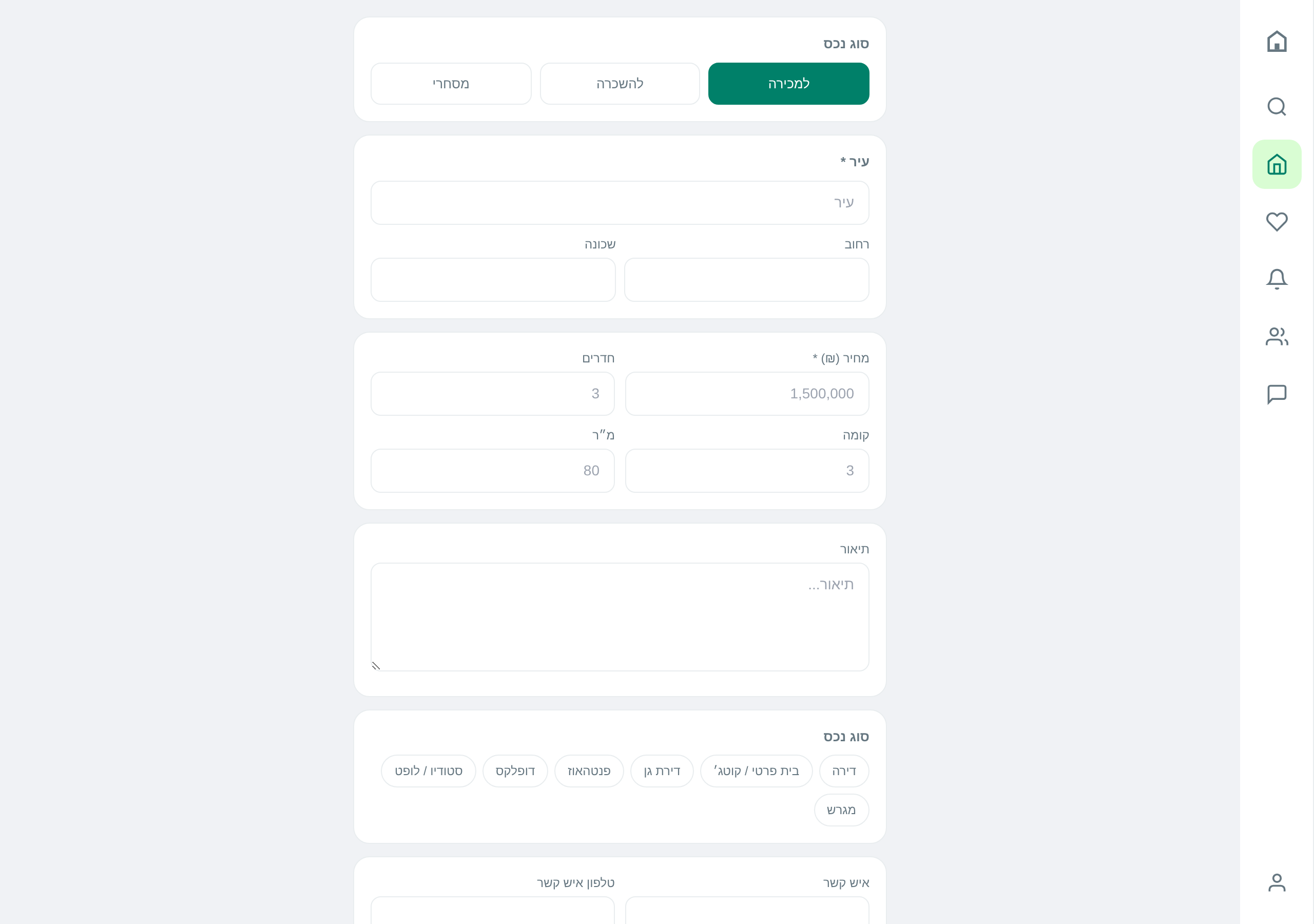
Select City
Type the city name and automatic options will appear. Choose from the list to ensure correct spelling.
-
3
Street, House Number, Neighborhood
These also have auto‑completion. If there is a house number, the neighborhood is usually identified automatically.
-
4
Price and Rooms
Price in shekels, whole number without thousand separators. For example: 2400000 not 2,400,000.
-
5
Additional Features
Check with a V what is relevant: parking, elevator, sqm, balcony, air‑conditioning, storage, renovated, furnished, security bars, yard, pool, accessibility, immediate entry. The more features — the more of your clients with saved alerts will receive specifically your property.
-
6
Photos
Upload the photos (any supported format). The first one will be the main image on the property card. You can add more later.
-
7
Publish
Final click on "Publish" — and the property enters the database. It appears on the search page within seconds.
Do it via AI
Reminder: the assistant really performs these actions — not just describes them.
Summary for confirmation:
- 📍 Karlivach 12, Be’er Sheva (neighborhood auto‑detected)
- 🏠 3.5 rooms, sale
- 💰 ₪2,400,000
- ✨ elevator, parking
Confirm?
Tips & gotchas
The "Owner Name" and "Owner Phone" fields are free‑form — not linked to your account. If you are the owner, it’s still advisable to fill in your phone number there so potential clients know how to contact you.
But not at the moment of addition — only in the next system scan cycle (every 15 minutes). So if you told a client "I’ll send it to you right away", send it manually using the "Share" button.
Ready to start?
Open the app or talk to the assistant on WhatsApp.